Rescuing a Windows Dynamic Disk Over USB with WSL2 and USB/IP
Windows refused to bring an old dynamic disk online over USB. Handing the raw USB device to WSL2's Linux kernel with usbipd-win got every file back.
I pulled a 1 TB NVMe out of an old Windows box, dropped it in a USB enclosure and plugged it in. Windows showed nothing.
No drive letter, no “initialize this disk” prompt, nothing in Explorer. Disk Management listed it as Invalid. The
enclosure’s booklet said to “bring the disk online”, which silently did nothing. The data was completely intact. Windows
was refusing on policy grounds, not because anything was broken. Getting it back meant going around the Windows
storage stack entirely. I handed the raw USB device to a Linux kernel that doesn’t share Windows’ opinions.
The setup
- Drive: WD SN550 1 TB, the old
D:from a previous Windows install - Enclosure: Sabrent NVMe to USB, Realtek RTL9210 bridge (
0bda:9210) - Host: Windows 11 build 26200, WSL2 with Ubuntu, usbipd-win 5.3.0
Five tools, four answers
The most useful part of the diagnosis was that the Windows storage tools disagree with each other. The disagreement is the clue:
| Tool | What it says |
|---|---|
| Explorer | nothing at all |
| Disk Management | present, Invalid, “Online” does nothing, no error dialog |
Get-Disk / Get-Volume |
disk not listed at all |
Get-CimInstance Win32_DiskDrive |
disk listed, partitions listed, Status OK |
diskpart → list disk |
Invalid, and the Dyn column is flagged |
Win32_DiskDrive is the old WMI view that sits close to the raw device. Get-Disk is the modern Storage Management provider
(MSFT_Disk). The disk exists at the bottom of the stack and doesn’t exist at the top. Set-Disk -Number 1 makes the point
explicitly:
The requested object could not be found.
Any tool built on the modern storage API is structurally blind to this disk. Remember that. It comes back later.
Reading the partition table by hand
At this point I stopped guessing. \\.\PHYSICALDRIVE<n> can be opened read-only like a file. A GPT is a simple enough
structure to walk in a page of PowerShell:
- a protective MBR at LBA 0 (partition type
0xEE) - a header at LBA 1 that starts with
EFI PART - an array of 128-byte partition entries wherever the header says
It’s completely non-destructive and it answers the question definitively. Here’s a version of it:
param([string]$Path = '\\.\PHYSICALDRIVE1', [int]$SectorSize = 512)

$types = @{
    'C12A7328-F81F-11D2-BA4B-00A0C93EC93B' = 'EFI System'
    'E3C9E316-0B5C-4DB8-817D-F92DF00215AE' = 'Microsoft Reserved'
    'EBD0A0A2-B9E5-4433-87C0-68B6B72699C7' = 'Basic Data'
    'DE94BBA4-06D1-4D40-A16A-BFD50179D6AC' = 'Windows Recovery'
    '5808C8AA-7E8F-42E0-85D2-E1E90434CFB3' = 'LDM Metadata'
    'AF9B60A0-1431-4F62-BC68-3311714A69AD' = 'LDM Data'
}

$fs = [IO.File]::Open($Path, 'Open', 'Read', 'ReadWrite')
function Read-Sectors([long]$lba, [int]$count) {
    $buf = New-Object byte[] ($SectorSize * $count)
    $fs.Position = $lba * $SectorSize
    [void]$fs.Read($buf, 0, $buf.Length)
    return ,$buf
}

try {
    $mbr = Read-Sectors 0 1
    '{0,-22} 0x{1:X2}' -f 'LBA0 partition type:', $mbr[450]   # 0xEE = protective MBR

    $hdr = Read-Sectors 1 1
    '{0,-22} {1}' -f 'LBA1 signature:', [Text.Encoding]::ASCII.GetString($hdr, 0, 8)

    $entryLba  = [BitConverter]::ToInt64($hdr, 72)
    $entries   = [BitConverter]::ToUInt32($hdr, 80)
    $entrySize = [BitConverter]::ToUInt32($hdr, 84)
    $table = Read-Sectors $entryLba ([math]::Ceiling($entries * $entrySize / $SectorSize))

    for ($i = 0; $i -lt $entries; $i++) {
        $o = $i * $entrySize
        $type = [guid][byte[]]$table[$o..($o + 15)]
        if ($type -eq [guid]::Empty) { continue }
        $first = [BitConverter]::ToInt64($table, $o + 32)
        $last  = [BitConverter]::ToInt64($table, $o + 40)
        $name  = [Text.Encoding]::Unicode.GetString($table, $o + 56, 72).TrimEnd([char]0)
        $t = "$type".ToUpper()
        $label = if ($types.ContainsKey($t)) { $types[$t] } else { $t }

        # look for a filesystem boot sector at the very start of the partition
        $boot = Read-Sectors $first 1
        $fsNote = ''
        if ([Text.Encoding]::ASCII.GetString($boot, 3, 8) -eq 'NTFS    ') {
            $ntfsSectors = [BitConverter]::ToInt64($boot, 40) + 1   # +1 for the backup boot sector
            $fsNote = "NTFS at +0, ntfs=$ntfsSectors part=$($last - $first + 1)"
        }
        '{0} {1,-18} start={2,-10} size={3,8:N1} GiB {4} {5}' -f ($i + 1), $label, $first,
            (($last - $first + 1) * $SectorSize / 1GB), $name, $fsNote
    }
} finally { $fs.Dispose() }
It needs an elevated shell. For reference, here’s what it prints against my internal system disk. That’s a normal basic disk:
LBA0 partition type:   0xEE
LBA1 signature:        EFI PART
1 EFI System         start=2048       size=     0.2 GiB Basic data partition
2 Microsoft Reserved start=411648     size=     0.0 GiB Microsoft reserved partition
3 Basic Data         start=444416     size=   930.5 GiB Basic data partition NTFS at +0, ntfs=1951346688 part=1951346688
4 Windows Recovery   start=1951791104 size=     0.8 GiB  NTFS at +0, ntfs=1730560 part=1730560
On the USB drive the partition table was perfectly healthy. The smoking gun was the type GUIDs:
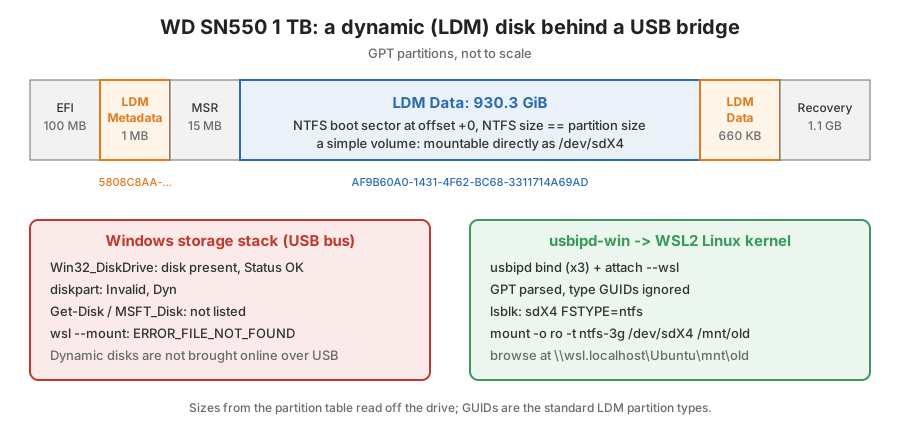
| # | Type | Size |
|---|---|---|
| 1 | EFI System | 100 MB |
| 2 | LDM Metadata (5808C8AA-7E8F-42E0-85D2-E1E90434CFB3) |
1 MB |
| 3 | Microsoft Reserved | 15 MB |
| 4 | LDM Data (AF9B60A0-1431-4F62-BC68-3311714A69AD) |
930.3 GiB |
| 5 | LDM Data | 660 KB |
| 6 | Windows Recovery | 1.1 GB |
That’s a dynamic disk. It’s Microsoft’s Logical Disk Manager, the volume manager from before Storage Spaces. And Windows will not bring a dynamic disk online on a USB or other removable bus. Not “can’t”, won’t. There’s no supported override.
I never asked for a dynamic disk. Nobody does. Disk Management offers the conversion in passing when you extend a volume into non-contiguous space. It also offers it when you span or stripe across disks. It’s a one-way trip. Converting back to basic through the UI wants the volumes deleted first. Somewhere along the way, that old D: got converted.
The check that makes it recoverable
The LDM metadata is how Windows knows what volumes live in the LDM data partition. A spanned, striped or mirrored volume has its filesystem scattered. You need that metadata to put it back together. But if it’s a simple volume, the filesystem is just sitting in the partition.
The NTFS OEM ID check in the script above settles it. On the USB drive, partition 4 had the NTFS boot sector at
offset +0. The NTFS volume size matched the partition size exactly. A simple volume. No LDM database parsing needed.
An OS that ignores the type GUID and just mounts the partition gets a perfectly good NTFS filesystem.
That size check is the safety check for this whole post. On a spanned or striped volume the filesystem extends past the partition. Mounting it raw would corrupt it, let alone writing to it. If those numbers don’t match, stop and use ldmtool or one of the alternatives at the end.
Linux ignores the type GUID. Its GPT parser creates /dev/sdX4 regardless of what the partition claims to be. lsblk
reports FSTYPE=ntfs. So the plan was to get the disk in front of the Linux kernel inside WSL2.
Dead end #1: wsl –mount
wsl --mount exists for exactly this, attaching a physical disk to the WSL2 VM:
> wsl --mount \\.\PHYSICALDRIVE1
Failed to attach disk '\\.\PHYSICALDRIVE1' to WSL2: The system cannot find the file specified.
Error code: Wsl/Service/AttachDisk/MountDisk/ERROR_FILE_NOT_FOUND
That looks like a path bug. It isn’t. wsl --mount appears to go through the same Storage Management layer that has no
object for this disk. That’s the same one that told Set-Disk it couldn’t find it. Windows can’t hand WSL a disk it
refuses to acknowledge. This can never work, so don’t burn time on it. A tool inherits the blind spots of the layer it’s
built on. The error message won’t tell you which layer failed.
Dead end #2: the usbipd race
The right idea is to pass the USB device through instead of the disk. usbipd-win
shares a USB device over USB/IP. WSL2’s kernel has the vhci_hcd client built in. So the enclosure shows up inside Linux
as if it were plugged into the VM. Windows never has to understand what’s on it.
First attempt:
WSL usbip: error: Attach Request for 2-7 failed - Device in error state
It took a while to see what was going on. The RTL9210 bridge re-enumerates every time its driver is swapped. It flips between two different USB identities:
- UAS mode: busid
2-7, “USB Attached SCSI (UAS) Mass Storage Device” - BOT mode: busid
2-3, “USB Mass Storage Device”
Each has its own instance ID. usbipd bind claims one identity, which swaps the driver. That makes the device reset
into the other identity. Then usbipd attach targets the one that’s already gone. Tracking by --hardware-id instead
of busid doesn’t help. The flip happens between the two commands regardless.
The fix is dumb and effective: bind in a loop until both identities are registered. Then whichever one is live is
already shared, and attach succeeds. Don’t scrape the table usbipd list prints. usbipd state emits JSON, which is
the robust thing to script against.
The working recipe
From an elevated PowerShell:
# WSL2 must be RUNNING or attach fails outright. This keeps the VM up for 2 hours.
Start-Process wsl.exe -ArgumentList '-d','Ubuntu','-u','root','--','sleep','7200' -WindowStyle Hidden

# absorb the UAS<->BOT re-enumeration
foreach ($i in 1..3) {
    $d = (usbipd state | Out-String | ConvertFrom-Json).Devices |
         Where-Object { $_.InstanceId -match '0BDA&PID_9210' }
    usbipd bind --busid $d.BusId
    Start-Sleep -Seconds 4
}

$d = (usbipd state | Out-String | ConvertFrom-Json).Devices |
     Where-Object { $_.InstanceId -match '0BDA&PID_9210' }
usbipd attach --wsl --busid $d.BusId

usbipd list   # expect STATE = Attached
Then inside WSL. I assumed the in-kernel ntfs3 driver would be there on a 6.18 kernel. It isn’t:
$ zcat /proc/config.gz | grep -E 'NTFS|USBIP_VHCI'
CONFIG_USBIP_VHCI_HCD=m
CONFIG_USBIP_VHCI_HC_PORTS=8
CONFIG_USBIP_VHCI_NR_HCS=1
# CONFIG_NTFS3_FS is not set
# CONFIG_NTFS_FS is not set
So it’s ntfs-3g over FUSE. Find the right device with lsblk -p first. It was /dev/sde for me, but that isn’t
stable. Look for the 931.5G disk with six partitions:
apt-get install -y ntfs-3g
mkdir -p /mnt/old
mount -o ro -t ntfs-3g /dev/sde4 /mnt/old
And from Windows, the whole old drive is a folder in Explorer:
explorer.exe \\wsl.localhost\Ubuntu\mnt\old
Mount read-only first, always. Prove you can read what you came for before you give yourself the ability to destroy
it. When I did need to clean things up, the remount was umount /mnt/old; mount -t ntfs-3g /dev/sde4 /mnt/old. Then I
checked that mount shows rw. Close the Explorer window before remounting, because Windows caches the read-only
attribute.
Teardown is the reverse, and the order matters:
wsl -d Ubuntu -u root -- umount /mnt/old
usbipd detach --busid 2-3
usbipd unbind --all
Gotchas
- While attached over USB/IP the drive disappears from Windows entirely. That’s how USB/IP works, not a bug.
- There is no Recycle Bin on a
\\wsl.localhostpath. Deletes are immediate and permanent. - The keepalive matters. If the WSL VM shuts down on idle, the USB attachment goes with it. Mid-write, that’s a real
problem. The
sleep 7200also runs out, so restart it for long sessions. ntfs-3gbuffers writes.umountbeforeusbipd detach. Never just yank it.- A dirty NTFS flag blocks a read-write mount. Hibernation or Fast Startup on the old install sets it. No
hiberfil.syson the volume is the quick tell that you’re clean. - Copying through
\\wsl.localhostgoes over WSL’s file sharing, so it’s not fast. Fine for pulling folders out, not what I’d use to move the whole terabyte.
Takeaways
- “Invalid” is a policy verdict, not a health verdict. Windows had a perfectly readable GPT in front of it and chose not to proceed. Nothing in the UI tells you the difference. The “bring the disk online” advice actively misleads.
- When abstraction layers disagree, drop below all of them. Reading the partition table by hand settled in a few minutes what four tools were giving four different non-answers about.
- USB/IP is a general escape hatch. A USB device Windows mishandles can be handed to a Linux kernel that doesn’t care. This isn’t really a dynamic disk trick. It’s having a second opinion available on demand.
To be honest, there are cheaper options, so nobody over-engineers this:
- Put the drive in an internal M.2 slot. Windows imports dynamic disks fine on an internal bus. Zero risk, full speed.
- Boot a Linux live USB and run
ldmtool create all, or mount the partition directly. - Use DMDE or R-Studio, which read LDM straight off a raw disk from Windows.
The WSL route wins when you don’t want to open a case and you want the files in Explorer.
Links
- usbipd-win
- Microsoft: Connect USB devices to WSL
- Microsoft: Basic and dynamic disks
- GPT partition type GUIDs
- libldm / ldmtool, the proper way to assemble LDM volumes on Linux
- ntfs-3g